Contents
Why You Need a Company in CADBase
Modern development is rarely a solo effort. Engineers, designers, and technologists work in teams: some are responsible for drawings, others for calculations. To organize teamwork, the platform uses companies with a role-based access model.
A company in CADBase is not just an "organization profile." It is an organizational unit that:
- Owns content. Components can be linked to a company to open access to the whole team.
- Manages access. Company members get access to its resources according to their roles.
- Works as a unified space. All company members work with a single data set instead of sending files to each other.
If you work alone, a personal profile is enough. But as soon as more than one person works on a project, a company simplifies both access distribution and collaboration.
Important: a company is not the same as a personal account. A single user can own several companies and simultaneously be a member of several other companies.
Creating a Company
You can create a company on the platform website at https://app.cadbase.rs/#/company/create.
The form requests basic information about the organization. It is advisable to fill in the full and short name; the latter is used in lists and component cards.
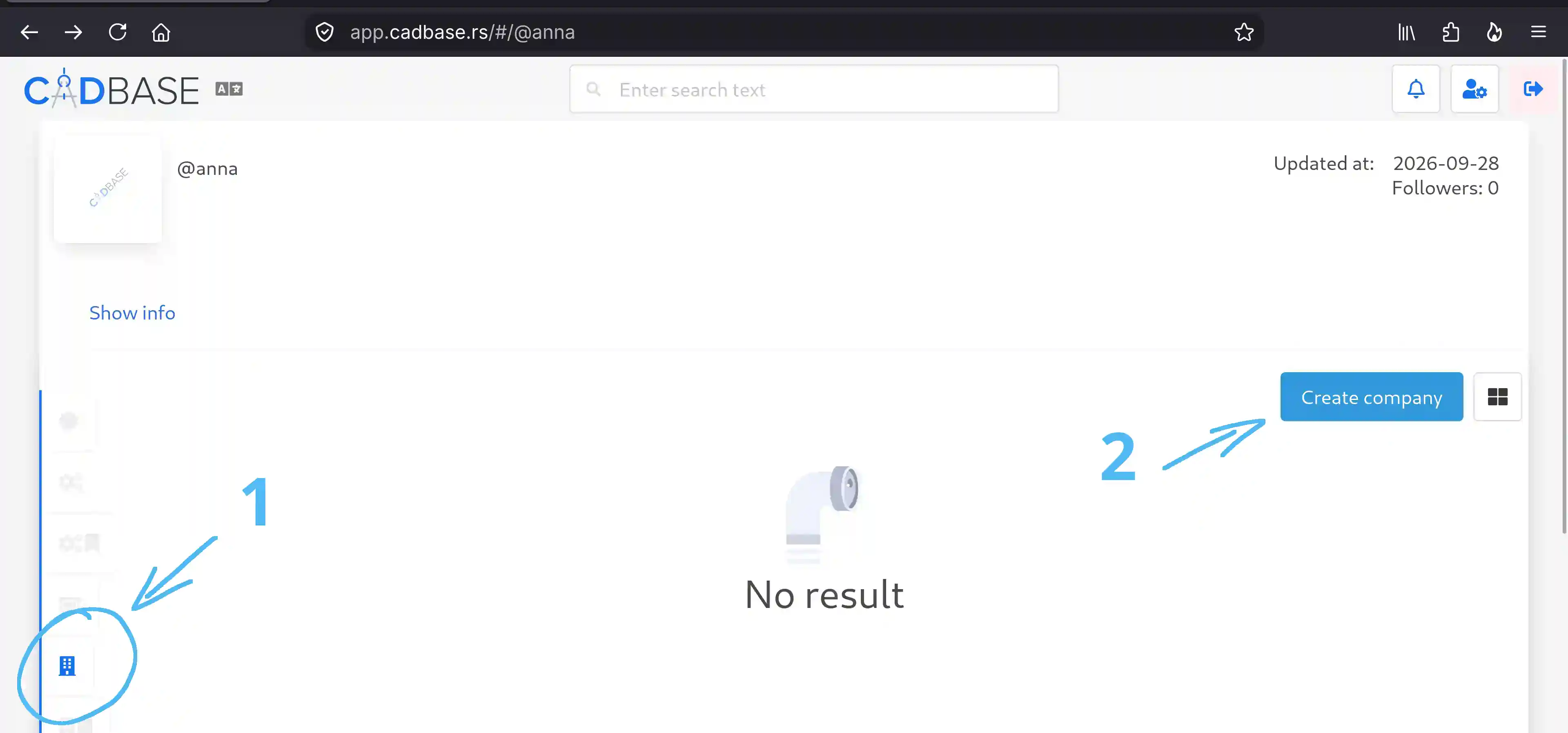
After creation, you become the owner of the company.
Component Access Rights
Access to a component can be obtained in two ways: through direct access granted to a specific user or company (the Access section in the component settings), or through membership in the company that supplies the component (roles in the company). These are independent mechanisms: direct access specifies the level explicitly, while access through a company is determined by the user's role.
Access Levels
Currently, two access levels are available on the platform:
| Level | What is allowed |
|---|---|
| Manage | View and modify the component. |
| Read | View the component without the ability to modify. The user can participate in discussions. |
Direct Component Access
Direct access is granted to a specific component and does not require company membership. Only the component owner can configure access.
Open the component card and go to the Access section — it is located in the horizontal menu of the card.
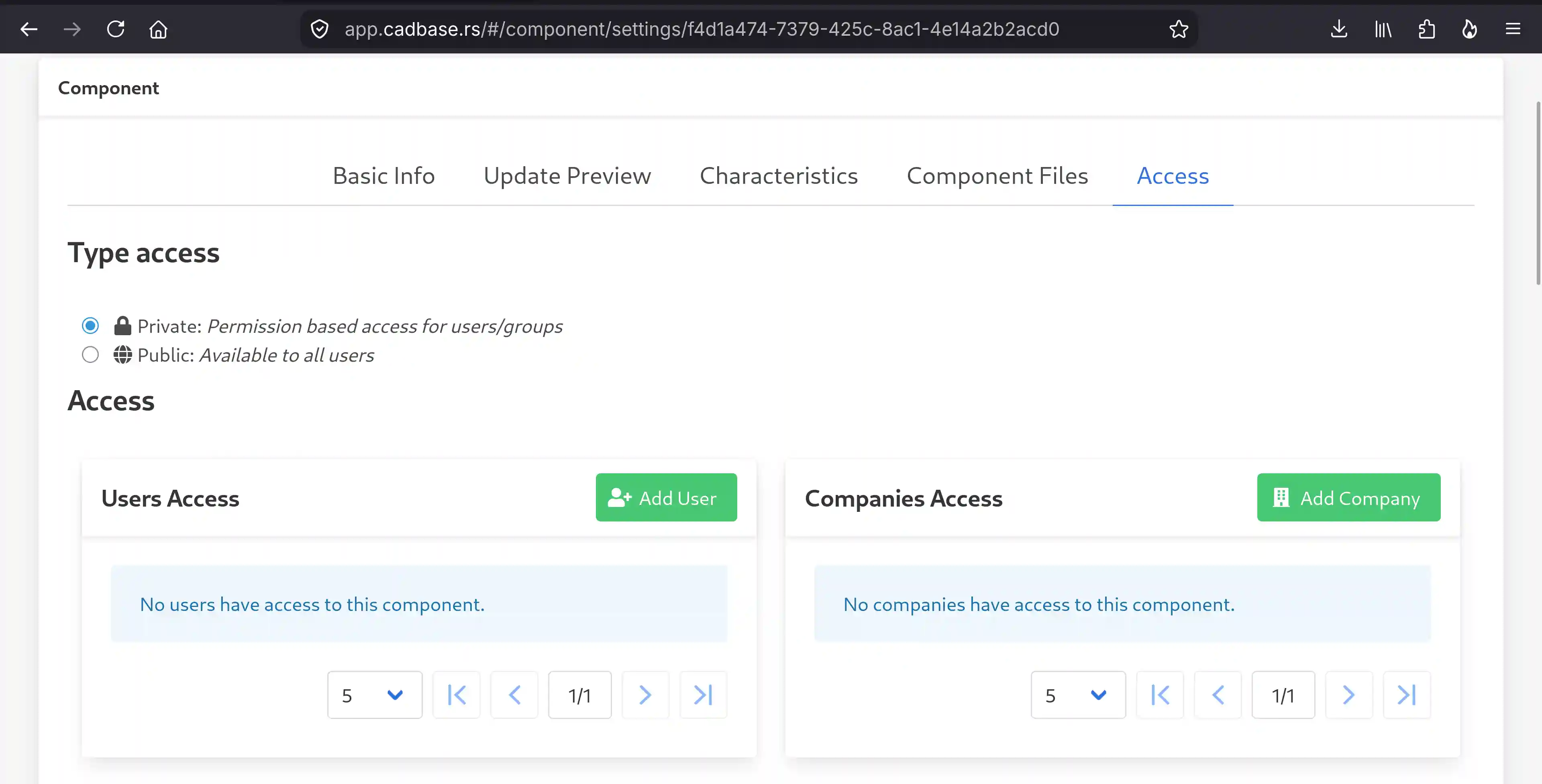
Granting Access
Add User — grant access to a specific user. Specify the username and access level.
Add Company — grant access to a company. All its members will get access to the component according to their roles.
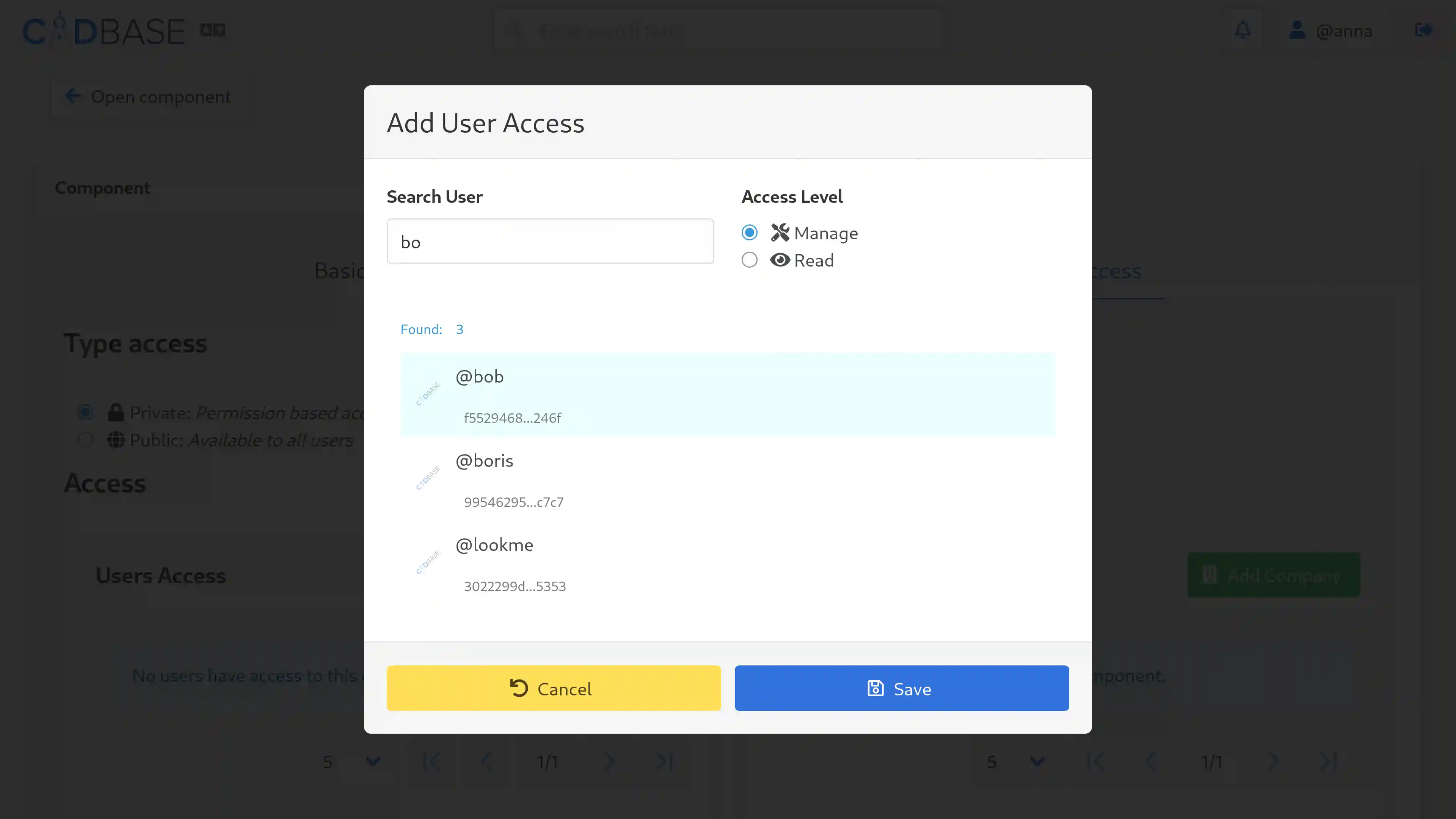
Direct access applies only to the component for which it was granted.
Access Through Company Roles
If a component is linked to a company, all its members get access to it according to their roles. This is more convenient than granting access to each employee individually.
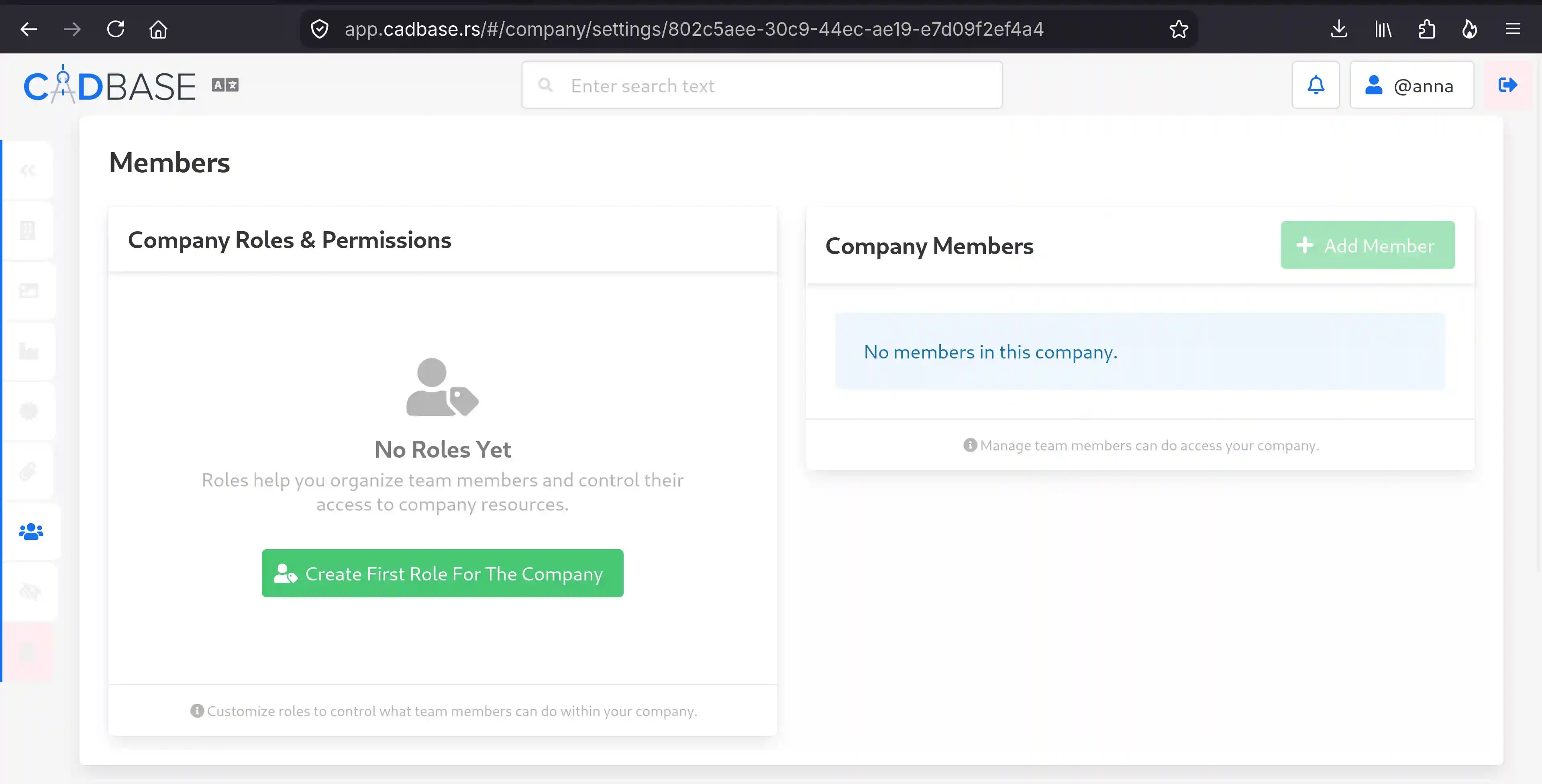
Role settings are located in the Members section in the company settings (menu on the left side of the screen).
Creating a Role
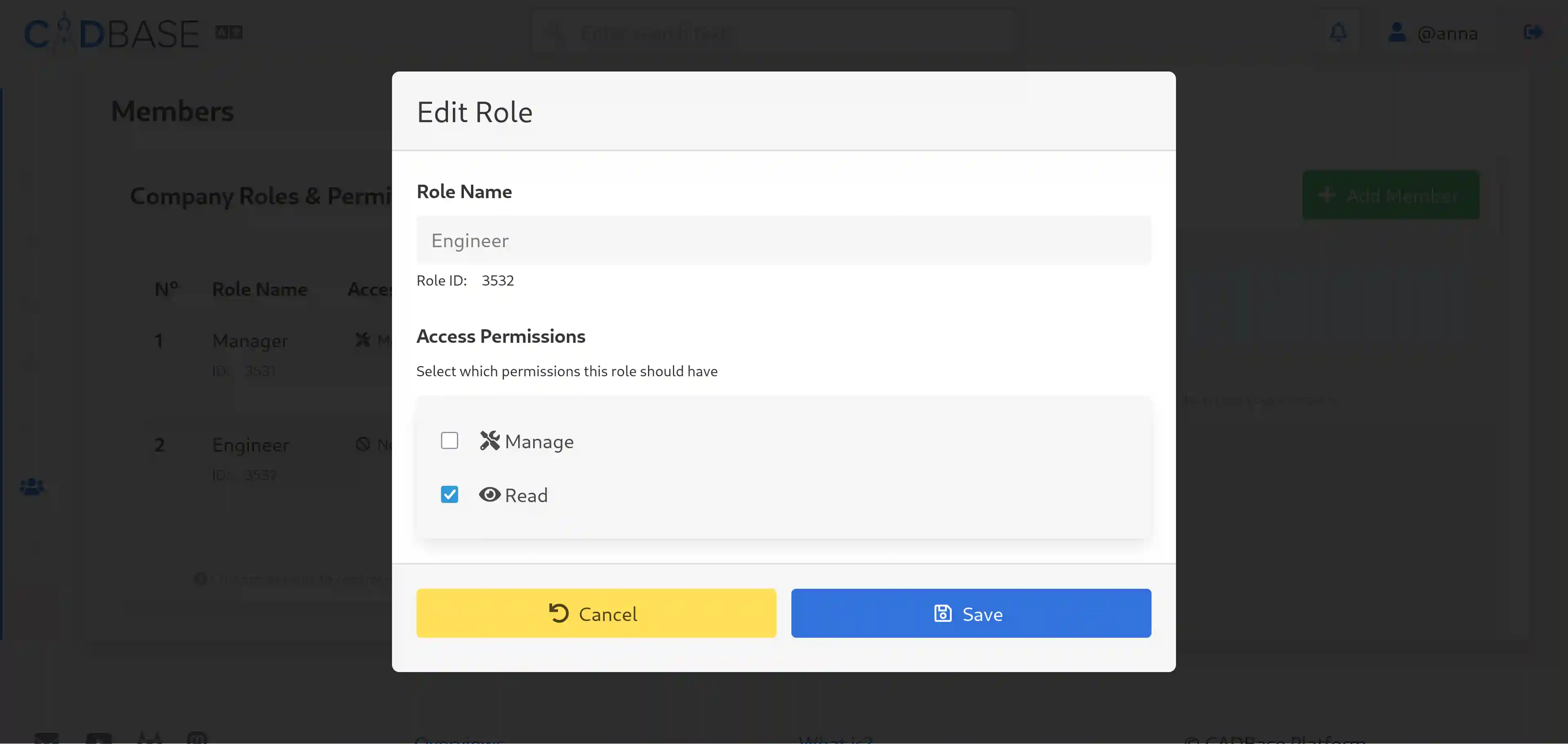
Each company has its own set of roles — roles are not transferred from one company to another. Click New Role and set a name. For example, two roles were created for the company in the screenshot:
- Manager — Manage. Full access to company data and inherited access without downgrading the level.
- Engineer — Read. View company components, full access to owned components, and participation in discussions.
After creating a role, add permissions to it through the role management section. You define the names and set of roles yourself.
Note: it is impossible to delete a role that is assigned to at least one member. First, unassign the role from the user, otherwise the server will return an error. This is protection against a situation where an employee is left "without rights" due to role deletion.
Adding Members
In the same Members section, click Add Member:
- Search for a user — by username, name, or email.
- Select a role — from the list of created company roles.
- Confirmation — click the Save button.
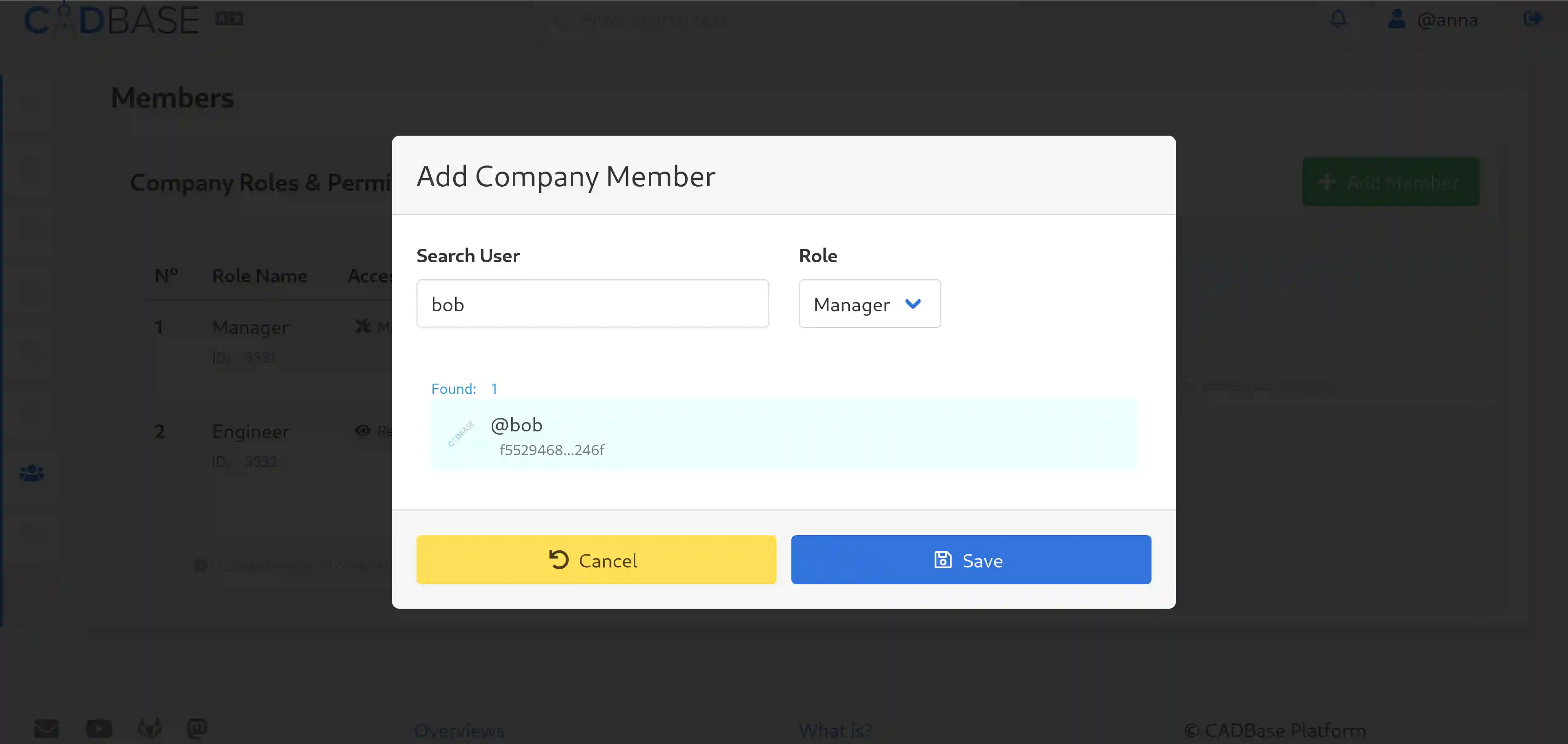
The user must already be registered on the platform. If not, ask them to register and then add them.
Note: search works only on data you have access to, so you may need to make the profile you are looking for public. After adding, the profile can be made private again.
What a New Member Sees
Immediately after being added:
- They get access to the company's resources according to their role.
- They can see the company's components, standards, and services.
The member's personal profile remains private — company membership does not reveal their data to other platform users unless they make the profile public themselves.
If a user has both direct access and access through a company, the higher level applies.
Collaboration on Components
Let's consider a scenario: a team of three people works on a series of gearboxes.
Role Distribution
| Employee | Role | What they do |
|---|---|---|
| Anna | no role (owner) | Manages company access and data, creates components. |
| Bob | Manager | Modifies company and component data. |
| Boris | Engineer | Views company components, works with their own components, participates in discussions. |
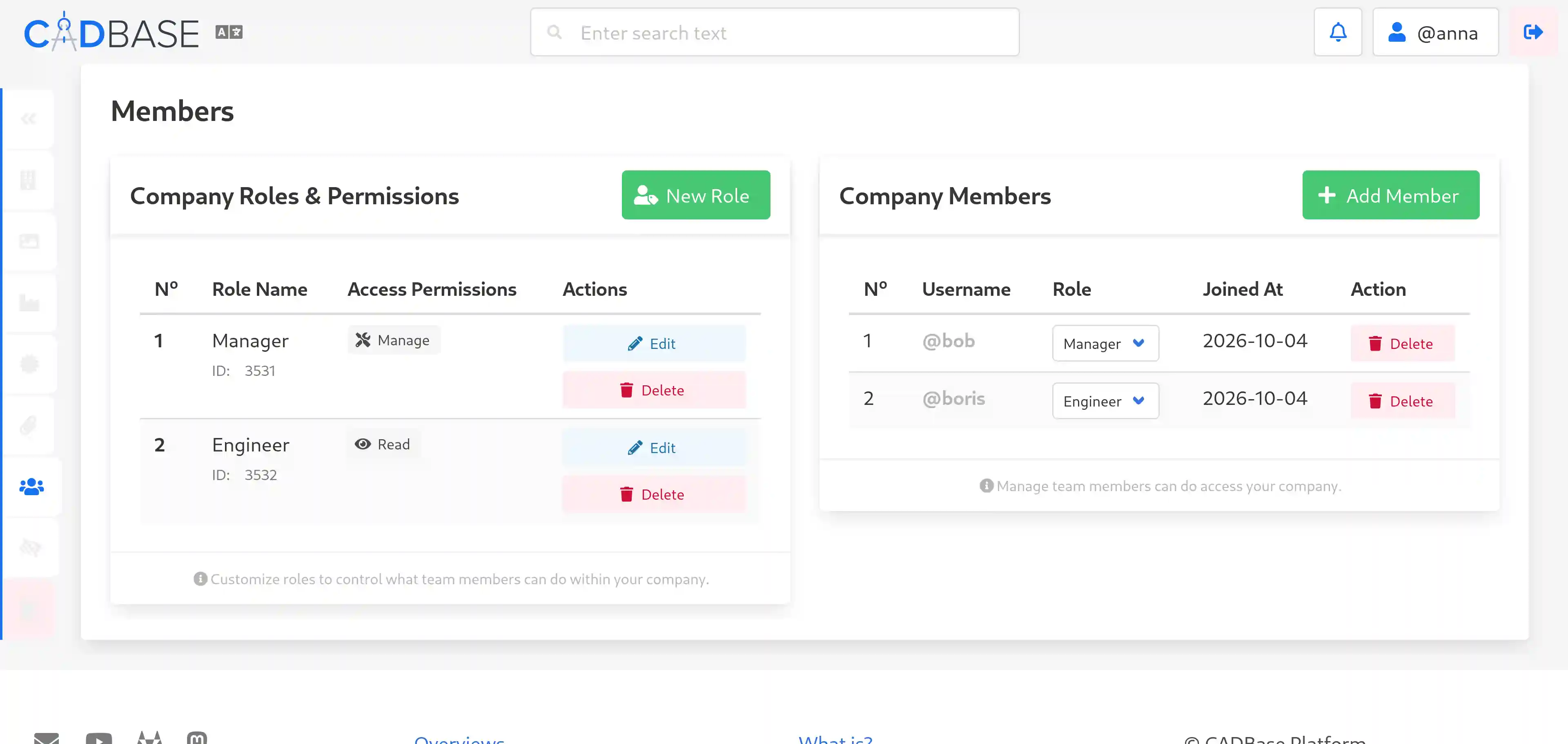
Further, all actions on the component are checked through roles:
User → Company → Role → Access Level → ComponentThat is, Bob can modify component data because his role grants the Manage level. And Boris can only view because he has Read.
How a Component Gets into a Company
When Anna creates a component and clicks Add supplier for component on its card, specifying the company, this company becomes a supplier of the component.
After that, Bob and Boris automatically get access to the component according to their roles — without having to grant access to each person separately.
At the same time, Anna remains the owner of the component, even if a supplier company is specified.
How Granting Access Differs from Setting a Supplier
These are two independent mechanisms that serve different purposes.
Granting access (the Access section of the component card) gives the right to view or modify the component. The access level is specified explicitly: Manage or Read.
Setting a supplier (the supplier management section of the component card) — the company becomes a supplier of the component, and its members get access according to roles.
Both mechanisms can be used simultaneously: for example, set a company as a supplier of the component and additionally grant direct access to an external contractor.
Practical Recommendations
- Don't give all team members the maximum access level. Even if the team is small, it is better to create two roles for management and viewing. This will protect against accidental component modification.
- Use direct access for contractors. Don't add freelancers to a company with sensitive data. It is better to create a separate company or grant them pinpoint access to specific components. This way, you won't reveal the entire project structure.
- Check roles before deleting. If a role cannot be deleted, it means someone is using it. Reassign the roles first.
Access levels are independent of each other. Even if a user or company profile is open to everyone, access to a specific component can be restricted. And vice versa.